Crimson Forest Map
Track 16 Crimson Forest places on this browser.Scope & details
The free Crimson Forest map includes 16 guide-referenced locations across six categories. Search the list, read access notes and track discoveries without an account. Your checklist saves on this browser and exports as JSON. This is an illustrative preview; no marker position has been independently verified in-game.
Unfolding your field atlas…
Your Crimson Forest map
and personal field record.
The Crimson Forest map is the first regional workspace in PBZ Field Atlas. Its sixteen entries are a starting collection, not an exhaustive survey. You can filter categories, read a source-linked note and mark what you have found without creating an account.
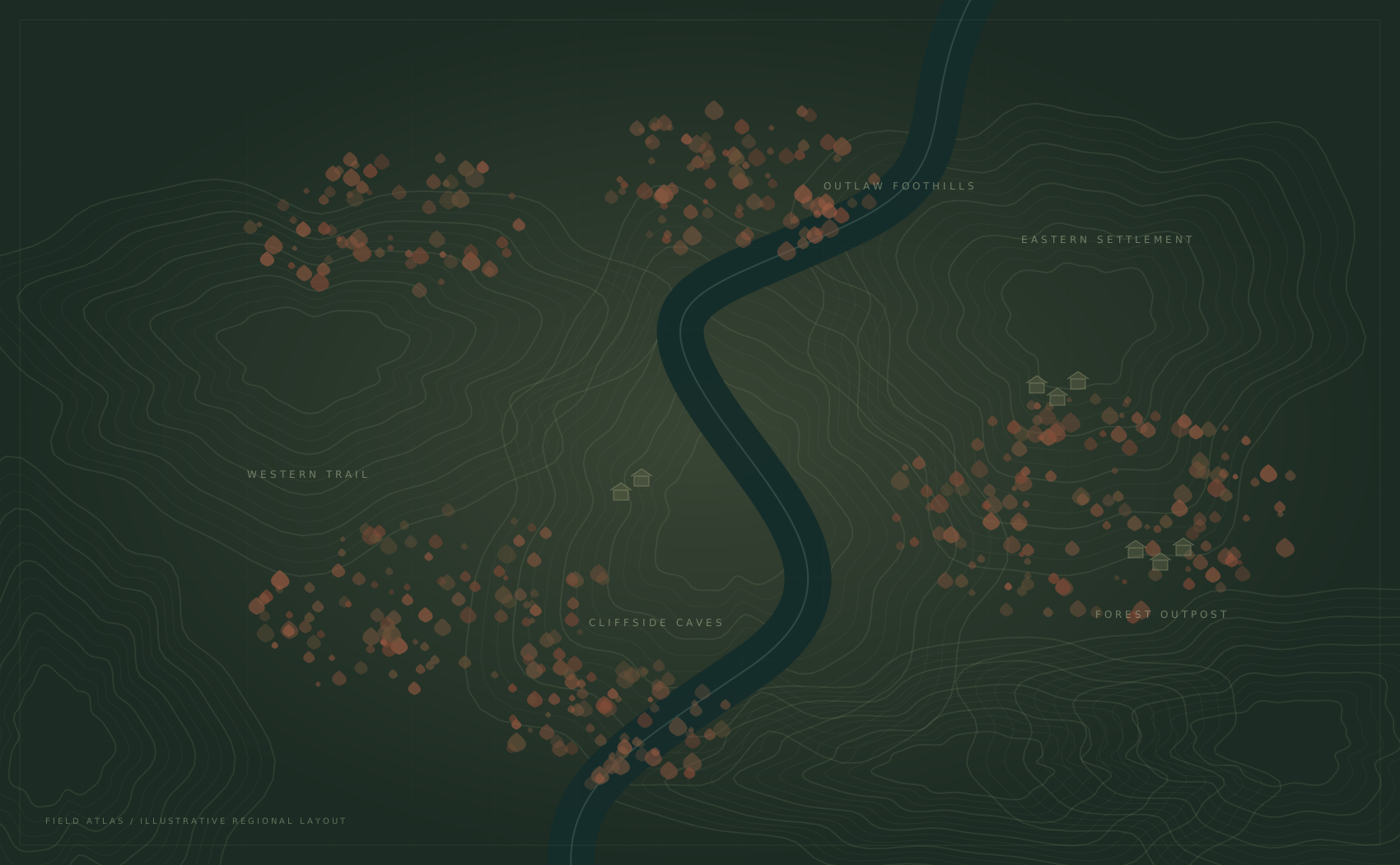
The drawing organizes locations into a readable schematic. It does not reproduce the game’s map, claim exact positions or calculate a path through the terrain. Before making a detour, use the source link inside the marker card to read the original guide.
Category counts and your completion bar refer only to this collection. Story-sensitive records are hidden until you reveal them. Your progress persists on this browser, and JSON export lets you keep a copy without connecting a game account.
Open regional field notes ↗Is this Phantom Blade Zero map free?
Yes. Explore 16 free locations for $0, with no account, subscription or paid marker limit. Every location included in this preview can be viewed. Story-sensitive locations are hidden by default, but you can reveal them using the Story locations switch.
Is this the complete, exact in-game map?
No. This release covers a selection of 16 guide-referenced locations in Crimson Forest. The artwork and marker positions form an original schematic, not surveyed game coordinates. Use the linked source guides for directions. The preview does not claim full region or game completion.
Does the Phantom Blade Zero map require sign-up?
No sign-up is needed. Found markers are saved in local storage on this browser. They are not uploaded to an account or synchronized between devices. Clearing site data, switching browsers or leaving a private browsing session can remove that local copy.
Can I back up my Phantom Blade Zero map checklist?
Yes. Choose Export in Your discoveries to download a JSON backup. On another browser, choose Import and select that file. A valid backup is merged with your existing checklist, so importing does not remove markers you already found. Exports contain JSON checklist data, not PNG map images; watermark settings do not apply.
How do I hide Phantom Blade Zero map spoilers?
Leave Story locations off in Map filters. Quest rewards and story encounters marked as sensitive are excluded from the map and location list. Turning the switch on reveals them. A shared link to a hidden location asks you to reveal story locations before showing its details.
Does the Phantom Blade Zero map work on mobile?
Yes. Open Filters to search and change categories, use the plus and minus controls to zoom, and drag the map to explore. Selecting a marker opens a bottom detail panel. Close the panel to return to the same map view.
Why does my discovery count differ from the game?
The count tracks only the locations in this preview. It is your personal checklist, not an imported game save or the game’s map completion percentage. Hidden story locations still belong to the checklist total. No connection to Steam, PlayStation or your game files is made.
What are the Phantom Blade Zero map sources?
Each point links to its source guide. Names and short notes were checked against published guides, but we have not tested these locations in-game. The Sources page explains the coverage, schematic layout and verification limits. Do not treat an illustrative marker as an exact navigation coordinate.
Browse the 16 reference locations Includes story spoilers
This reference index is available without loading the interactive map. These are guide-referenced entries, not an exhaustive collectible list. Layout positions remain illustrative.
| Location | Area | Reference |
|---|---|---|
| Crimson ForestEnter Crimson Forest. | Forest threshold | Map reference ↗ |
| Memory Flower · Forest thresholdReach the first bell. | Forest threshold | Map reference ↗ |
| Abandoned Main RoadExplore the main trail. | Western trail | Map reference ↗ |
| Pangzhen Bridge OverlookContinue along the main path. | Western trail | Map reference ↗ |
| The Fanatic’s Broken BladeDefeat the Sword Fanatic. | Bridge approach | Map reference ↗ |
| Trail of CagesProgress beyond the bridge encounter. | Cliffside caves | Map reference ↗ |
| Free Quick Hand ZhangReach the hanging cage. | Cliffside caves | Map reference ↗ |
| Outlaw TrapReach the bandit camp overlook. | Outlaw foothills | Map reference ↗ |
| Crimson Forest Tunnel CrankExplore around Outlaw Trap. | Outlaw foothills | Map reference ↗ |
| Sect Leader’s Snuff BottleCrimson Forest Tunnel Crank. | Underground passage | Map reference ↗ |
| Outlaw WarbladeDefeat Jing Ye, the Outlaw. | Outlaw foothills | Map reference ↗ |
| Thieves’ CampProgress beyond Jing Ye. | Eastern settlement | Map reference ↗ |
| Quick Hand’s RequestFree Quick Hand Zhang first. | Eastern settlement | Map reference ↗ |
| Bloodstained SealExplore the cliffside passage. | Forest outpost | Map reference ↗ |
| Forest Outpost Courtyard KeyReach the forest outpost. | Forest outpost | Map reference ↗ |
| Memory Flower · Cliffside caveExplore the cliffside cave. | Cliffside caves | Map reference ↗ |
How do I use the Crimson Forest map?
If you have a location name from the game or a guide, enter it in the search box. The results include matching names, category names and area labels. Open the Locations tab for a text list; it is often easier to scan than the map when several points are close together.
The area labels on this schematic are organizational labels. They should not be mistaken for a complete list of in-game subregions. We group nearby reference themes to make the small preview manageable, and we preserve the source note on each record so that you can judge its relevance.
Selecting a location focuses the marker and opens a card. Check Before you go for any recorded access condition. The Mark as found button records your own observation; it does not test the game state. A completed card can be toggled back if you marked it too early.
Work through one category at a time
Turn off categories that are not relevant to your current search. For a short checklist review, choose Already found. To continue exploration, choose Not found yet. These progress filters combine with the category and text search settings, so a location must match all active filters to appear.
An empty result does not necessarily mean a location is missing from the atlas. Clear the search, restore categories and check the story switch. We display the visible count separately from the full checklist total to make that distinction clear. Reset filters does not erase your discovery progress.
Keep a reliable reference
A location is labelled guide-referenced when its name and short note have been checked against a published guide. No entry in this release is labelled independently tested in-game. Point positions remain illustrative, even when the corresponding landmark is real. There is no scale bar or shortest-route estimate because the schematic does not support those measurements.
This distinction matters when paths change height, pass through caves or require a progression event. A diagram that looks close on screen may not represent a short walk. Read the source and use the game’s own landmarks before relying on a visual relationship in this preview.
The source ledger lists the reference publications. It also explains the current scope and the date of review. If sources disagree or a location cannot be checked, we do not silently turn that uncertainty into a precise map claim.
Return without losing your checklist
Found-location identifiers stay in local storage. Export before clearing browsing data, changing devices or switching out of a private window. Import accepts only this atlas’s supported backup format and merges valid entries with your present checklist. It never removes already-found points just because they are absent from the imported file.
Sharing a location sends a URL fragment, not your progress. A friend opening that link gets the same location selection but maintains their own checklist and spoiler preference. For storage, backup and mobile instructions, open Help. Read Free access for the current limits and Contact to prepare a correction.